Connecting to GitHub using SSH🔗
In 2021 GitHub stopped allowing password-based authentication for accessing repositories from the command line. The only valid methods of authenticating are using Personal Access Tokens or using SSH keys. Using SSH keys to connect to GitHub can often be simpler and more convenient than using Personal Access Tokens.
Generating a new SSH key🔗
To use SSH, you first need to generate a key that will be used by your system.
-
Launch the DEVASC VM.
-
Open the Terminal.
-
Enter the command below, replacing the email address with your own email address.
devasc@labvm:~$ ssh-keygen -t ed25519 -C "josh.lowe@ontariotechu.ca"
Generating public/private ALGORITHM key pair.
Important
The e-mail address you use in this command must be the same as the e-mail address you use for GitHub
-
When prompted for the file in which to save the key, press Enter to accept the default path (a hidden folder called .ssh in your home folder). By default your keys will have the name id_ed25519, but you can change it to something else.
Enter a file in which to save the key (/home/devasc/.ssh/id_ed25519): [Press Enter] -
At the prompt, type a secure passphrase and verify it by typing it again.
Enter passphrase (empty for no passphrase): [Type a passphrase]
Enter same passphrase again: [Type passphrase again]
You should see the key get created with your e-mail address included.
Your identification has been saved in /home/devasc/.ssh/id_ed25519
Your public key has been saved in /home/devasc/.ssh/id_ed25519.pub
The key fingerprint is:
SHA256:G8fHpTqZbW2xRyVnKm4sJvPcCbLwQyXzD6hFgJ9pRt5 josh.lowe@ontariotechu.ca
The key's randomart image is:
+--[ED25519 256]--+
|o  .. .   . . .  |
|+=.. o o . * o   |
|+o+ o B o + + .  |
|. .+ o O   . . . |
|.. .. S o  o  .  |
|     + *   X   . |
| .  . =   . o . .|
|       =   E . o.|
|  .. .o..     ..+|
+----[SHA256]-----+
This command created two files in your chosen path: a private key called id_ed25519 and a public key called id_ed25519.pub
Warning
The private key (the one without an extension) should never be shared with anyone, or stored with your repositories. It must be kept secret at all times!
Adding your SSH key to the ssh-agent🔗
Once you've created your new SSH key, you will need to add it to the ssh-agent running on your machine, which manages your keys and passphrases for SSH connections.
-
Verify that the
ssh-agentis running by entering the command.devasc@labvm:~$ eval "$(ssh-agent -s)" Agent pid 2819 devasc@labvm:~$Note
Your PID (process identifier) will likely be different than the one shown above
-
Add your SSH private key to the ssh-agent.
devasc@labvm:~$ ssh-add ~/.ssh/id_ed25519
Enter passphrase for /home/devasc/.ssh/id_ed25519:
Identity added: /home/devasc/.ssh/id_ed25519 (josh.lowe@ontariotechu.ca)
devasc@labvm:~$
Note
If you used a different name or path when saving your key, make sure you enter it here. Also note that the tilde (
~) is a shortcut to your home folder (/home/devasc/in this case)
Add the SSH key to your GitHub account🔗
In order for GitHub to recognize your SSH key as a valid authentication option, you need to link your public key (the contents of the file ending in .pub) to your GitHub account.
-
Copy the SSH public key to your clipboard. Make sure you copy your key, not the one in the example.
devasc@labvm:~$ cat ~/.ssh/id_ed25519.pub
ssh-ed25519 AAAAC3MazC1rZDI1NET7AAAAIBX41NzTnN43elHgZxSqOKtCP66VlacQQephl4LEl+nx josh.lowe@ontariotechu.ca
devasc@labvm:~$
Tip
Be sure you don't copy any blank lines, whitespace, or extra text when copying your key.
-
Log in to GitHub.
Note
You don't need to do this part in the DEVASC VM Chromium browser if you'd rather do it on your own device. Just be sure that you can copy the key from the DEVASC terminal to your local clipboard.
-
In the upper-right corner of GitHub, click your profile photo, then click ⚙️ Settings.
-
In the Access section of the sidebar, click 🔑 SSH and GPG keys.
-
Click New SSH key.
-
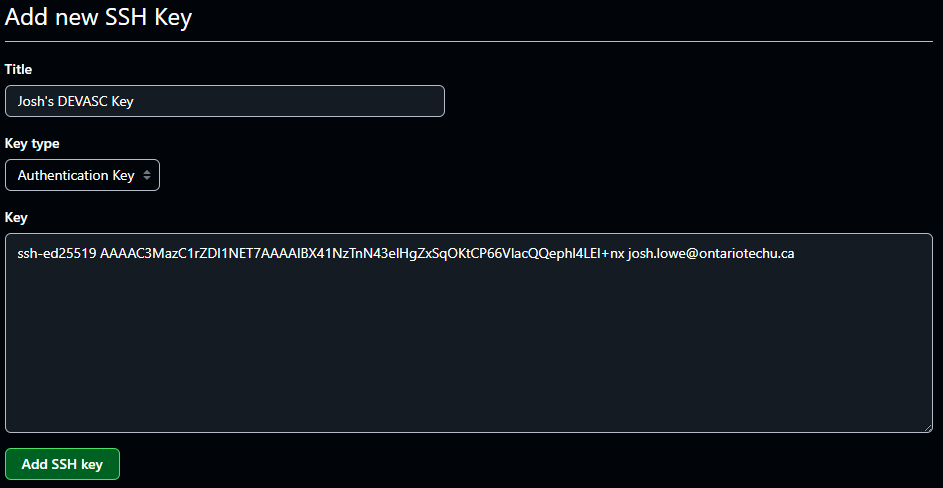
Input a name for your key in the Title field.
Tip
If you'll be accessing GitHub from multiple devices, it's often useful to include the name of the device where you generated this key in the name of the key (e.g., DEVASC SSH Key).
-
Leave the Key type field set to Authentication Key.
-
In the Key field, paste the public key you copied from your DEVASC terminal in step 1.
Your screen should look similar to the following:
-
Click Add SSH key.
-
If prompted, confirm access to your account.
Testing your SSH connection🔗
You'll need to authenticate this action using your password, which is the SSH key passphrase you created earlier.
-
In the DEVASC VM, open the Terminal.
-
Enter the following:
devasc@labvm:~$ ssh -T git@github.comThis will attempt to authenticate to GitHub using your SSH keys.
-
You will likely see a warning that the host 'github.com' could not be authenticated, followed by the SHA256 fingerprint of GitHub's public key. You can find a list of GitHub's public key fingerprints here: GitHub's SSH key fingerprints.
Assuming the key matches one of the ones listed on that site, type
yesto continueThe authenticity of host 'github.com (140.82.113.3)' can't be established. ECDSA key fingerprint is SHA256:p2QAMXNIC1TJYWeIOttrVc98/R1BUFWu3/LiyKgUfQM. Are you sure you want to continue connecting (yes/no/[fingerprint])? yes -
You will see a warning that 'github.com' has been added to your known hosts list. Verify that you've successfully authenticated by looking for the message
Hi <username>! You've successfully authenticatedWarning: Permanently added 'github.com,140.82.113.3' (ECDSA) to the list of known hosts. Hi prof-lowe! You've successfully authenticated, but GitHub does not provide shell access.
Using SSH to clone a repository🔗
Once you have SSH keys successfully configured and added to GitHub, you can now use SSH to push and pull repository changes.
-
On GitHub, navigate to the main page of the repository you want to clone.
-
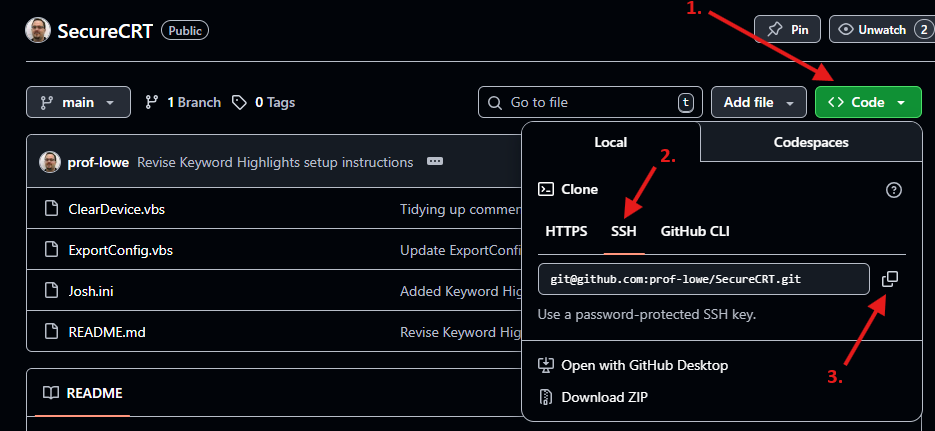
Above the list of files, click the green <> Code button.
-
Click the SSH tab, then click the copy icon to copy the SSH URL to your clipboard
-
In the DEVASC VM, open the Terminal.
-
Change the current working directory to the location where you want the cloned directory.
Bash Sessiondevasc@labvm:~$ mkdir test devasc@labvm:~$ cd test/ -
Type
git clone, and then paste the URL you copied earlier.devasc@labvm:~/test$ git clone git@github.com:prof-lowe/SecureCRT.git Cloning into 'SecureCRT'... Warning: Permanently added the ECDSA host key for IP address '140.82.114.3' to the list of known hosts. remote: Enumerating objects: 28, done. remote: Counting objects: 100% (28/28), done. remote: Compressing objects: 100% (27/27), done. remote: Total 28 (delta 10), reused 0 (delta 0), pack-reused 0 (from 0) Receiving objects: 100% (28/28), 13.77 KiB | 4.59 MiB/s, done. Resolving deltas: 100% (10/10), done. devasc@labvm:~/test$You should see the repo sucessfully download to your machine.
References🔗
Generating a new SSH key and adding it to the ssh-agent
Adding a new SSH key to your GitHub account
Testing your SSH connection
Cloning a repository